Salesforce Integration is Live: Export Contacts Directly to Your CRM

Export your K-12 contacts directly to Salesforce in seconds. No CSV downloads, no manual imports. After a simple one-time field mapping setup, select your contacts, choose Salesforce, and watch them appear in your CRM with their districts automatically linked.

Salesforce Integration

How It Works

Initial Setup (5 minutes, one-time only):

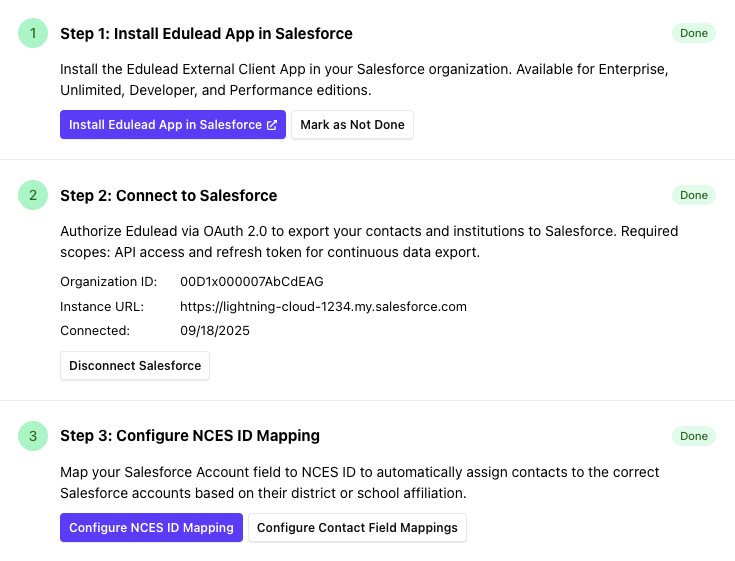
Navigate to Settings → Integrations → Salesforce to get started.

  1. Step 1: Install Edulead App in Salesforce (2 minutes)
    • Install the Edulead Connected App in your Salesforce org using the installation link we provide
    • Mark as done in Edulead when complete
  2. Step 2: Connect to Salesforce (1 minute)
    • Click "Connect to Salesforce" to authorize via OAuth 2.0
    • Review the permissions on the Salesforce authorization screen and click "Allow"
  3. Step 3: Configure Field Mapping (2 minutes)
    • Required: Map the NCES ID field to your Salesforce Account's custom NCES ID field. This enables automatic Account linking for all contacts
    • Optionally configure additional Contact field mappings

Every Export After That (under 1 minute):

  1. Search and select contacts in Edulead
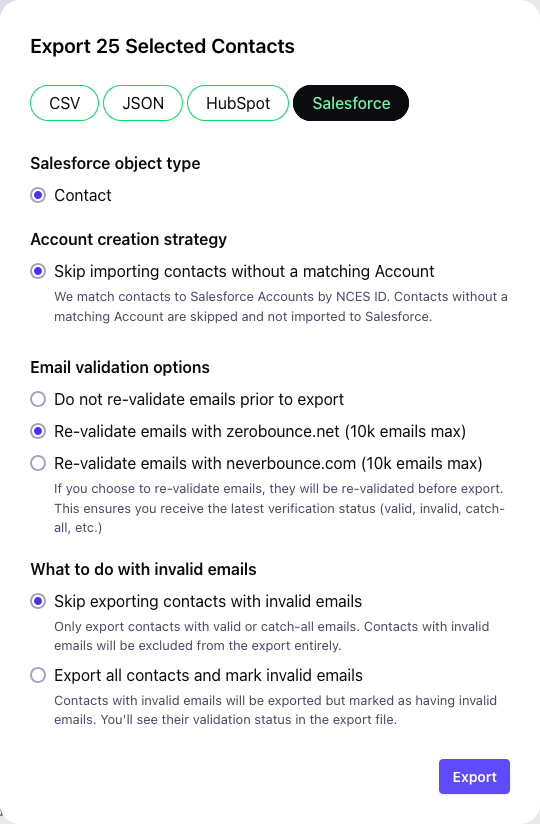
  2. Click Export → Choose Salesforce
  3. Choose export options and click Export
  4. Contacts appear in Salesforce with their schools automatically linked

That's it. After the initial setup, exports take seconds to start and minutes to process in the background.

Salesforce Integration

The Magic: NCES ID Matching

Every school and district in the US has a unique NCES ID (National Center for Education Statistics identifier). We use this to automatically link contacts to the right Accounts in Salesforce.

No manual matching required. When you export a superintendent from "Springfield School District", we find the matching Account in your Salesforce using the NCES ID. The contact gets linked automatically.

Important: Your Salesforce Accounts must have NCES IDs stored in a custom field, and you must map this field during setup. This is essential for automatic Account linking. Most education-focused Salesforce orgs already have NCES ID fields configured.

Export Options That Actually Matter

Account Creation Strategy

What happens when a contact's school doesn't exist in your Salesforce yet?

  • Skip importing contacts without a matching Account

    Only import contacts whose schools already exist in your Salesforce. Safe and clean.

  • Create Accounts for unmatched institutions (coming soon)

    Automatically create new Accounts for schools not yet in your CRM.

Email Validation

Re-validate emails before export with ZeroBounce or NeverBounce. Get fresh validation status for every email. Takes a few extra minutes but ensures you're importing clean data.

What Gets Exported

Default contact field mappings include:

  • First Name → FirstName
  • Last Name → LastName
  • Email → Email
  • Phone → Phone
  • Title → Title
  • Account (automatically linked via NCES ID matching)

You can customize these mappings to include additional fields or map to custom Salesforce fields during the initial setup.

Bulk Export Performance

Using Salesforce Bulk API v2.0 for maximum performance:

  • 100 contacts: ~30 seconds
  • 1,000 contacts: ~1 minute
  • 10,000 contacts: ~3 minutes
  • 50,000+ contacts: ~10 minutes

Actual times depend on your Salesforce configuration and validation rules.

Export Status & Results

After starting an export, you'll see real-time status updates:

  • Pending Upload in progress
  • In Progress Salesforce is processing your contacts
  • Success Export completed successfully! Download results CSV
  • Failure Export failed. Check error details

The results CSV shows exactly what happened to each contact:

  • SUCCEEDED: Contact imported successfully
  • FAILED: Contact failed (with error reason)
  • SKIPPED: Contact skipped (no matching Account)
Salesforce Integration

FAQ

Do I need to install an app in Salesforce?

Yes. The Edulead Connected App must be installed in your Salesforce org before you can connect. This is a one-time setup step that ensures secure OAuth authentication.

Do I need to configure field mappings?

Yes, but only once. You'll set up field mappings during Step 3 of the initial configuration to match your Salesforce fields. The most important mapping is the NCES ID field on your Account object - this enables automatic Account linking. After setup, exports use your saved mappings automatically.

What about duplicate contacts?

Salesforce's duplicate rules apply. If you have duplicate prevention enabled, duplicates will be caught and reported in the results.

What happens if I import the same contact multiple times?

If a contact with the same email already exists in Salesforce, the duplicate rules in your Salesforce org will determine the behavior. Typically, the contact will either be updated (upserted) or skipped, depending on your configuration. The results CSV will show exactly what happened to each contact.

Can I export to Leads instead of Contacts?

Coming soon. Currently we export to Contacts only, with automatic Account association.

What if an export fails?

Download the results CSV to see exactly which contacts failed and why. Common reasons include validation rule violations or missing required fields in your Salesforce.

Is my data secure?

Yes. We use OAuth for authentication (we never see your password), encrypt all data in transit, and don't store your Salesforce credentials.

Getting Started

Follow the 3-step setup process:

  1. Install the Edulead app in your Salesforce org
  2. Connect Salesforce in Settings → Integrations
  3. Configure NCES ID field mapping for automatic Account linking

Then export contacts:

  • Search contacts in Edulead
  • Select and export to Salesforce

Ready to try it? Log in to Edulead and look for the Salesforce option in your export menu. Your first export takes less than a minute.